 Last week while I was out of town for the MTNA conference, several of my students wanted me to check over their written assignments. Normally they aren’t *this* eager for me to check their work, but they are preparing for our piano rally this coming weekend. It was helpful for me to see it ahead of time, because it let me know what we needed to drill at their next lesson.
If a student sends an image of a worksheet to you, here is way to easily correct the worksheet and send it back to them using an iPad and the Notability app. You can also use this method if you have a long-distance student that you teach via Skype or FaceTime.
- Once a student emails or texts his work to you, save the image to your device.
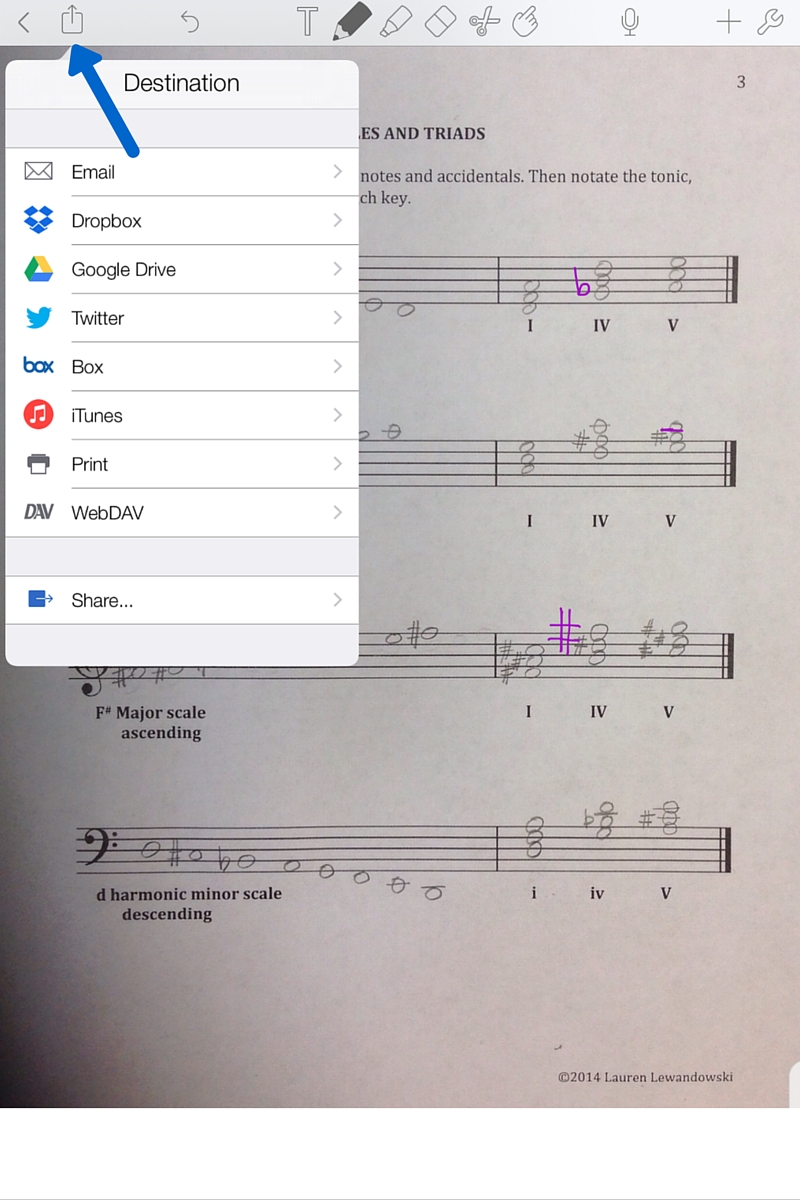
- In your photos folder, select the photo you would like to annotate and then select “Notability.” It will then send the photo to the Notability app.
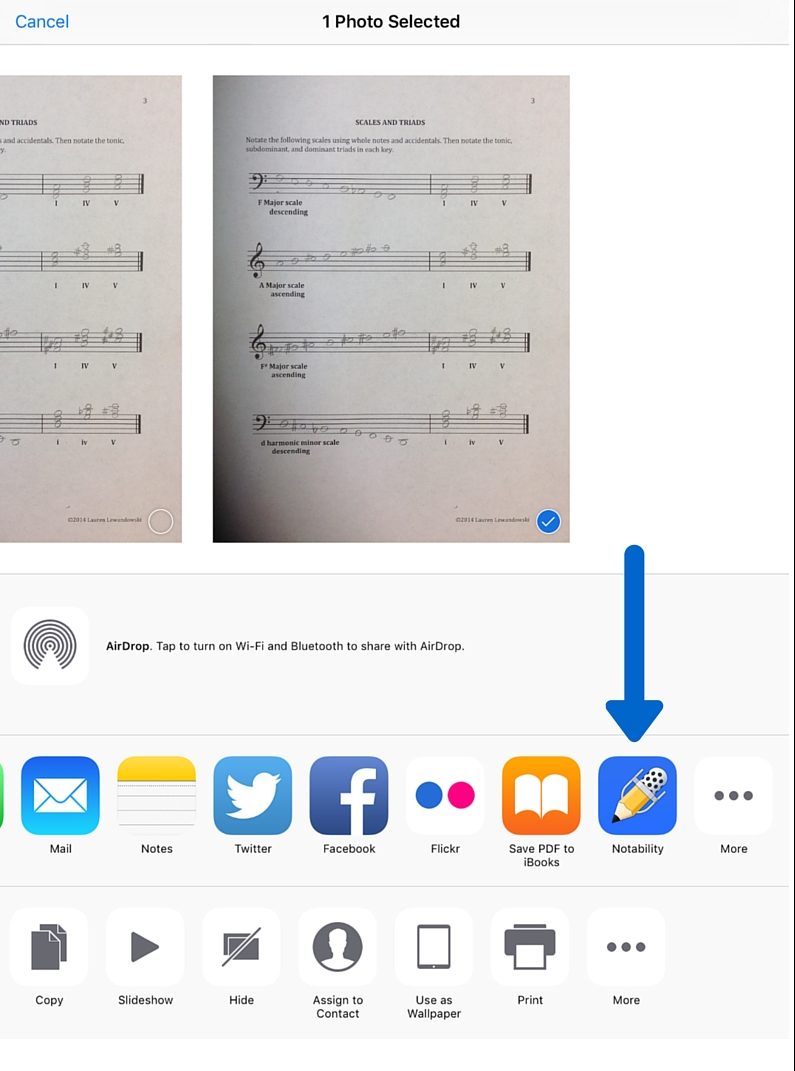
- Once you open notability, an import box will show. Select “Create new note.”
- When the image is opened, you can zoom in using two fingers if needed. Select the pencil icon to annotate your student’s work. I find that using a stylus makes this a little easier.

- When you are finished annotating the work, select the top arrow to email to your student. Your student will then receive the worksheet with your corrections!
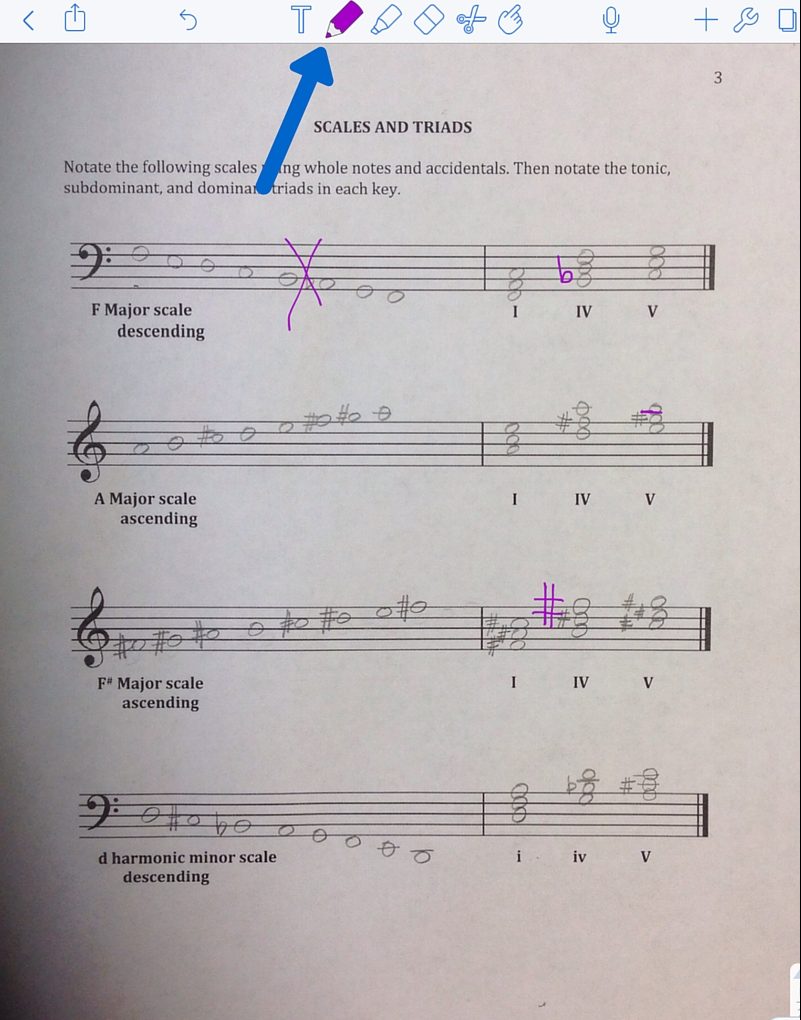
 Check out this other post about how I use Notability for worksheets.

Lauren teaches piano to students of all ages. She enjoys creating resources for her students and teachers. She is the author of Ready for Theory®. For personalized help, check out the consultations page for teachers.


You could also use Talkboard for live collaborative work. I love it!
Thanks for the suggestion, Linda! I’ll check it out.